Skip to content
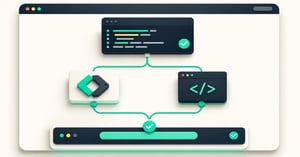
Two installation paths, a tag container and a direct script window, converging into a working website toolbar
Rich Tank27 Aug 267 min read

Install a website toolbar with GTM or a direct script

Your team has agreed to put important website actions in a bottom bar. The next question sounds technical: “Should we add the script to the site, or put it in Google Tag Manager?” For a marketer, the real question is who owns the change and how you will know it reached visitors.

Both routes use the same Barrava script. A direct install puts it in the website's shared code or template. Google Tag Manager (GTM) runs it from a published web container that your team already uses to manage site tags. Pick one owner and one route. Installing it in both places can create two widget loads and makes troubleshooting harder.

Barrava's current production snippet is:

<script src="https://app.barrava.com/Barrava.js" async defer></script>

Use that exact current host and filename. Old Barra script URLs are no longer the install contract. You do not need to paste a second snippet for every action in the bar. When a selected feature such as chat, search, feedback or cookie settings needs extra code, the main script can request a small helper file from the same app.barrava.com service.

First, publish the thing the script will load

The script is the delivery route. It still needs your saved website domain and a published Barrava configuration. Configuration means the actions, appearance and supported device visibility you set in Barrava Admin. New accounts begin with a draft. Saving a draft is not the same as publishing the bar. If you want the toolbar on only certain URLs, control where the script is installed or where the GTM tag fires; do not assume Barrava Admin currently provides URL targeting.

Start with this short preflight:

  1. Confirm the domain in Barrava Admin matches the real website you will test, such as www.example.com.
  2. Publish the latest toolbar configuration, including the actions and device settings you intend to show.
  3. Decide who can deploy the website template or publish the GTM container.
  4. Check whether the site already loads Barrava through a theme, GTM, snippet plugin or WordPress plugin. Remove the old method as part of a controlled change; use only one installation route.

If the script cannot find a valid published configuration for the live domain, Barrava is designed to fail closed: it does not fill the page with a sample toolbar. That is useful for visitors, but it means “the script loaded” and “the bar appeared” are two separate checks.

Choose the route by ownership, not fashion

Question Direct script GTM Custom HTML tag
Who reviews the change? The website developer or release owner The GTM container owner
Where is the script added? Shared site template, ideally before </body> Custom HTML tag in the existing web container
What makes it live? Publishing the website Publishing a GTM container version
How do you preview? Site staging or deployment preview, then the live URL GTM Preview or Tag Assistant, then the live URL
Common snag Site release or security policy blocks the script or its connections The container, tag or trigger is not live, or consent rules prevent the tag firing

If developers already review third-party scripts with the site's normal releases, use the direct route. If a mature GTM process owns those scripts, a Custom HTML tag can fit. GTM does not remove the need for ownership, consent review or a production check. A GTM Preview session is a test, not a published release. Google's Custom HTML guidance and publishing guide describe those separate steps.

Direct install: one shared template, one site release

Ask the person who owns the website template to add the snippet once, preferably just before the closing </body> tag. If the platform only offers a site-wide head or script field, use that approved place. Keep the async defer attributes in Barrava's supported snippet; do not build an extra loader around it. The browser may run an asynchronous external script when it is ready, so do not assume Barrava will appear before another page script or promise zero load cost. The HTML scripting standard explains the timing rules.

Publish the website change through its usual release process. Open a public page on the saved live domain in a fresh browser session. Look for one successful request to https://app.barrava.com/Barrava.js, then check the bar and a real action. If you added the script to staging first, staging may have a different browser hostname. That can require a temporary domain="saved-domain.com" attribute to test the saved customer configuration. Remove that preview override before a normal live-domain release unless Barrava support has explicitly approved it.

Do not treat a successful staging preview as proof that the public site was updated. The live page is where the customer sees the result.

GTM install: publish the container after Preview

Confirm the website already has the right GTM web container. A container is GTM's package of tags and trigger rules installed on the site. In that container, create a Custom HTML tag and paste the same canonical Barrava snippet. Give it a clear name such as “Barrava website toolbar”.

The trigger decides which pages cause the tag to run. Use All Pages only when you intend to install the toolbar site-wide. For a smaller rollout, configure a GTM Page View trigger for the intended URLs and test both a matching and non-matching page. Barrava's current Admin does not supply URL targeting for this job. If several triggers can fire, configure and test the tag so it runs only once per page. Then use GTM Preview or Tag Assistant to confirm the tag fired on a relevant URL. Google explains Preview and debugging and tag firing options.

Check the site's consent setup with its owner before publishing. Consent rules can stop a GTM Custom HTML tag from firing. That might be the policy working as intended. If your site wants the toolbar available before analytics consent, discuss an allowed installation and analytics setup with the privacy and development owners; do not quietly bypass consent. Then submit and publish a named GTM container version. A draft tag or successful Preview does not put the bar on the public site.

Finally, visit the live domain without the Preview connection. GTM Preview against a live URL normally keeps that live hostname. A separate staging or CMS preview host may use a different hostname and fail Barrava's domain lookup; that is a preview-domain issue to diagnose, not proof that GTM cannot install the product.

The five-minute live check both routes need

Use one real desktop page and one real mobile page where the bar should appear:

  1. One install: confirm the canonical Barrava.js request appears once and there is no older theme, GTM, plugin or snippet copy. A GTM-injected script may not appear in the page's raw “view source”; check the browser's loaded scripts or network panel.
  2. Published config: confirm the bar actually renders with the saved actions, order and device rules. The script's 200 response alone is not enough.
  3. Actions: tap and use one important CTA. Check its destination, not just its appearance. For a chat or cookie-settings action, confirm the site's existing provider opens as intended; Barrava does not install those specialist providers.
  4. Layout: make sure the bar leaves the mobile page readable, does not cover a form or consent control, and behaves as intended when the page scrolls.
  5. Network and consent: look for blocked requests or console errors in a clean visit and, where appropriate, a visit after consent choices. Some selected behaviours request helper scripts from app.barrava.com/widget-modules/.

A Content Security Policy (CSP) is a site's rulebook for which scripts and network connections the browser may use. A strict CSP can block the main script, its configuration request or a helper. Ask a developer to review the relevant script, connection and style rules; do not paste a broad “allow everything” exception. Google's tag-platform CSP guide and the W3C CSP standard explain the controls.

If the bar is missing, diagnose in this order: correct saved domain; published Barrava config; site or GTM release actually live; one current snippet; consent and trigger rules; then CSP or network errors. That order catches the common “everything was saved, nothing was published” problem before it becomes an all-afternoon debugging session.

The best installation method is the one your team can own, review and verify. Publish the configuration, install the current snippet once, and test the real visitor journey on the public domain. If you are still setting up the account, start with Barrava Admin and choose the route that fits your site's release process.

avatar
Rich Tank
Rich Tank is a founder, consultant and product-minded marketer with experience across growth, CRM, digital strategy and user experience. He has spent his career helping businesses improve how they attract, convert and support customers online. He writes about digital experience, website journeys, marketing technology and the broader challenge of creating websites that are both effective and easy to use. Based in London, Rich is particularly interested in the intersection of user behaviour, conversion and product thinking.

RELATED ARTICLES