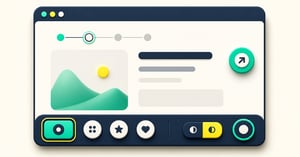
A designer shows you a mobile page with a neat action bar. It looks readable. Every icon has a label. The bar passes its own component checks. Then you use Tab to move through the page: focus disappears under a consent banner, returns inside the bar, and disappears again behind the bar when it reaches the final form button.
That is why a sticky or floating control needs a page-level accessibility test. Sticky means it stays attached to an edge as the page scrolls; floating means it sits above content with space around it. Neither shape makes the page accessible by itself. You need to check what happens before, inside and after the control, with the other elements visitors actually see.
This checklist is a release aid, not a claim that a page conforms to the Web Content Accessibility Guidelines (WCAG). WCAG is the set of testable web-accessibility requirements. The checks below translate some particularly relevant requirements into things a marketing or website team can watch happen, then give a developer a useful failure report.
Test one real task from start to finish
Do not start with a screenshot of the bar. Choose a page and a task: for example, reach a pricing page, open chat, return to the form and submit it. Include the state most likely to crowd the page, such as a consent prompt or validation error.
Here is an illustrative B2B product page. A bottom bar contains “Book a demo”, Chat and Cookie settings. The visitor has scrolled to the last field of the demo form. Opening the keyboard leaves less of the page visible. A cookie banner is also present on first visit. Those are not rare edge cases to ignore; they are normal states in which someone needs the controls to work.
Run the task with a keyboard, then on a phone, then with a screen reader if your team can do so. The test passes when the person can identify each action, reach it, use it, understand where they are afterwards and complete the form without content being hidden. A component library may help, but only the assembled page can answer that question.
1. Follow keyboard focus across the whole page
Focus is the link, button or field that will respond to the next key press. Without touching the mouse, press Tab through the header, page content, persistent control, form and footer. Then use Shift+Tab to go back. The order should make sense for the task, and the currently focused item should be visible.
WCAG Keyboard requires functionality to work through a keyboard interface. Focus Visible requires a visible indication of where focus is. Focus Not Obscured (Minimum) says author-created content must not entirely hide the component receiving focus. A visible outline inside the bar says nothing about the form button behind it.
Try the task with the bar collapsed, expanded if it has that state, and with chat or a consent panel open. If an opened panel keeps focus inside it until dismissed, make sure the close route works and focus returns sensibly. If it lets focus move back to the page, make sure that page focus is not hidden behind the panel. The WAI modal-dialog pattern is useful when a control opens a modal — a panel people must deal with or close before returning to the page. Do not trap focus in an ordinary bar that leaves the page available.
Record a failure like this: “On the demo page at mobile width, Tab from the last form field moves to Submit, but Submit is completely behind the action bar. Shift+Tab reveals it.” That tells the developer where and when to fix the scroll or spacing behaviour.
2. Check each control's name and target
An icon needs a name that explains what pressing it does. “Speech bubble” describes a picture; “Open chat” names an action. Ask someone who has not seen the design to identify each item without a hover tooltip. Then use a screen reader or accessibility inspector to check the name exposed to assistive technology. A tooltip can help some pointer users, but it cannot carry the whole meaning.
WCAG Name, Role, Value covers the programmatic identity and state of controls. If visible text says “Book a demo”, the accessible name should include those same words so someone using speech input can say what they see; that is the point of Label in Name. If a button opens and closes a panel, inspect whether its expanded state is announced accurately.
Now try to tap two neighbouring actions. WCAG Target Size (Minimum) sets a 24 × 24 CSS-pixel threshold with defined exceptions, including sufficient spacing around smaller targets. A CSS pixel is the browser's layout unit, rather than a physical screen dot. This is a minimum, not a recommendation to cram three tiny icons into a bar. Barrava's design system aims for roughly 44px touch targets where the layout allows. If fitting the bar requires all labels and targets to become hard to use, remove a lower-priority action before shrinking everything.
Barrava's ordered toolbar can show icon labels and call-to-action (CTA) text. Its icon buttons retain full accessible names even when visible labels clip. The website team still needs to test each actual label, CTA, target gap and destination name on the published page.
3. Make sure the page can still be read
Scroll to the end. Can the final paragraph, form action, error message and footer link move fully above the persistent UI? A docked control may reserve room for itself. A floating control overlays the page, so even a compact one can cover a precise target. The mobile implementation guide explains the reserve-space and safe-area decisions in more detail.
Shrink the browser to a narrow width and enlarge the text. WCAG Reflow covers content rearranging to fit a 320 CSS-pixel width for vertically scrolling pages, with limited exceptions. Resize Text covers enlarging text up to 200% without loss of content or function, subject to its stated exceptions. The practical check is plain: can you still read the labels, reach each action and avoid sideways scrolling? Do not treat clipped text as a cosmetic detail if it changes the meaning of the action.
Check colour and focus styling in the actual theme. A visible icon may lose contrast against a customer-selected background. WCAG Non-text Contrast applies to the visual information needed to identify interface components and states. Do not rely on colour alone to show which item is selected or disabled. Automated checks can catch some contrast and markup issues; they cannot tell you that a chat launcher covers the form's final action.
4. Make the competing controls take turns
On the illustrative demo page, the first-visit cookie banner and action bar both want the bottom edge. When chat opens, a third panel appears. Merely raising one z-index value (the CSS stacking order) puts one obstruction in front of another. It does not give the visitor back the space.
Make a small edge inventory for the page: each sticky or floating item, when it appears, how it closes, and who owns it. Decide which control waits, collapses, moves or yields when a higher-priority choice appears. A first-visit consent choice must stay usable; a marketing bar can usually wait for it. Test that choice with keyboard and touch, then test whether the original focus returns after chat or another panel closes.
On eligible accounts, Barrava's plan-gated Chat and Cookie settings actions can open supported providers already installed on a site. These modules are Pro-entitled. Barrava does not provide the chat service, accept or store consent choices, or automatically coordinate every third-party panel. Test the actual provider and host page together before using either action.
5. Keep a short release record
Use the same page and task each time the bar, labels, form or adjacent widgets change:
| Test state | What to do | Pass condition |
|---|---|---|
| Keyboard route | Tab forward and back through page, bar and footer. | Focus order is understandable; focused items and indicators can be seen. |
| Names and activation | Inspect labels and accessible names; use Enter/Space as appropriate. | Each action's purpose and state are clear; the intended function works. |
| Narrow and enlarged | Use a 320 CSS-pixel-width view and enlarge text to 200%. | No important label or action is lost; the task remains usable. |
| Touch and spacing | Tap adjacent controls, then the page's final action. | Targets are usable and no essential control is covered. |
| Combined state | Open consent, chat, errors and keyboard where relevant. | The visitor can close or complete each state and continue the original task. |
For a failure, save the page URL, viewport or device, the exact state, the action that failed and the responsible owner. Retest the whole journey after the fix. A pass for one control in isolation is not a pass for the site.
Barrava can give you a configurable docked or floating action layer, but accessibility remains a property of the finished page. Start with the most crowded route you intend to use, run this checklist, and fix the first point where a person loses their place or their next step.